Playing
Settings worth knowing
Horizon plays like vanilla out of the box. This page covers the settings that are different or new: graphics, distant terrain, shader packs, resource packs, controllers and a few optional extras.
All of them are in the game's Options screen. Horizon's own menus group them in sections: Video, Audio, Controls, Accessibility, Language, Chat, Interface, Extras and Mods.
Menu style
Horizon draws its own menus: the title screen, the world list, the options and the pause menu, over a live view of the world. If you prefer vanilla's screens, go to Options, Interface, Menu style and choose Classic. Classic has no way back inside the game, so to return to Horizon's menus use the launcher's Settings page, which has the same switch.
Graphics: presets, Simple and Advanced
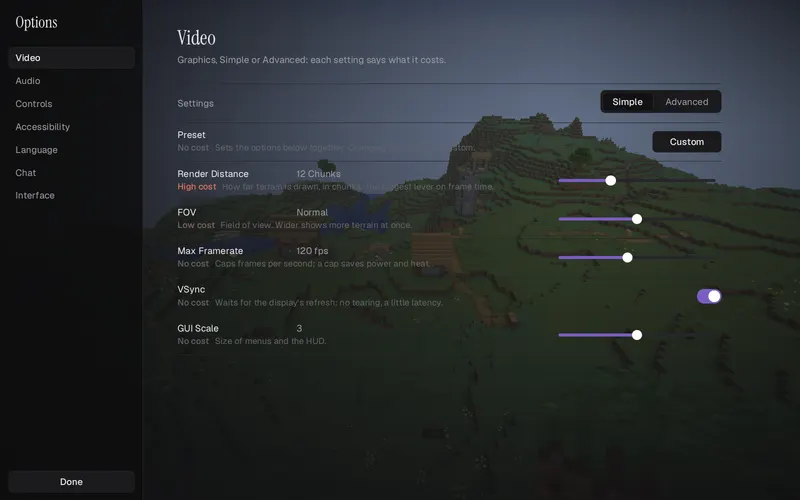
Options, Video has a Simple / Advanced switch at the top, and the game remembers your choice.
- Simple has a preset (Performance, Balanced, Quality, Ultra or Custom), render distance, LOD distance, field of view, maximum frame rate, VSync and GUI scale.
- Advanced has every setting, in groups: Rendering, Quality, Display, Preferences, Performance and Overlay.
Every row has a one-line description and its cost in frame time: none, low, medium or high. Changes apply at once, except worker threads, which apply at the next start. A preset sets the quality settings together, and changing one of them turns the preset into Custom.
Two settings are worth knowing on laptops and handhelds. Battery mode (Performance group, off by default) caps the frame rate at 60 in a world and 30 in menus, and uses half the automatic worker threads. The performance overlay (Overlay group) shows the frame rate, frame times and a graph over the game.
Not available: anisotropic filtering, MSAA (FXAA is there instead) and exclusive fullscreen (fullscreen is borderless).
Distant terrain (LOD)
LOD Distance draws far-away terrain as simplified columns, so you can see much farther than the render distance. It is off by default. Turn it on in the Video settings and choose 64, 128, 256, 512 or 1024 chunks.
- Keep the normal render distance modest next to it. For example 12 chunks with a LOD distance of 256. Full Detail Distance sets the nearby range.
- LOD does not raise the simulation distance: far terrain is only drawn, not simulated.
- Detail arrives gradually. A big radius does not mean everything is drawn right away.
- Far terrain is made from the world's seed, so places you have not visited are drawn too, close to what they will be. Small features, fluid edges and lighting can differ from the real chunks.
- Horizon caps far terrain on integrated graphics and holds it back on computers with four threads.
Graphics API on Windows
Linux always uses Vulkan and macOS always uses Metal. On Windows there is a choice, in Options, Video, Advanced, Performance, Graphics API:
- Auto (the default) uses Vulkan, and DirectX 12 when Vulkan has no graphics card or driver that works.
- Vulkan and DirectX 12 force one of the two.
The change applies at the next start. If Vulkan gives you trouble, try DirectX 12.
Shader packs
Shader packs are experimental. Put a pack's folder in the shaderpacks folder of the game folder (see Install for where that is), then choose it in Options, Video, Shader Packs. With no pack selected the game draws exactly what vanilla draws. A pack that fails to load shows why in red and leaves the normal picture on.
Horizon can run the full-screen effects of Java shader packs (OptiFine and Iris packs: colour grading, bloom, sky and fog effects). It does not run their geometry and shadow passes yet, so packs do not look as they do in Iris. Horizon's own shader format, in WGSL with hot reload, is planned. The details are in the shader pack notes.
Resource packs
Java Edition resource packs work. Put the folder or .zip in the resourcepacks folder of the game folder and pick it on the Resource Packs screen, which is vanilla's screen. The game reloads every loader from the pack, as vanilla does.
Resource packs: what works lists everything a 26.3 resource pack can change and whether Horizon honours it.
Controllers
Horizon plays with PlayStation (DualShock 4 and DualSense), Xbox (360, One and Series) and Nintendo Switch Pro controllers, and with the Steam Deck's built-in controls. Vanilla has no controller support at all, so this is Horizon's own. With no controller connected, nothing changes.
- Settings are in Options, Controls, Controller: on or off, vibration, look sensitivity, inverting the axes, deadzones, button glyphs and remapping.
- Menus, the inventory and chat work with a controller, with an on-screen keyboard for text.
- On a DualSense you can also set adaptive triggers and the lightbar.
- On the Steam Deck, Steam's default layout works with no setup.
Extras
Options, Extras holds small, optional conveniences. Every one is off by default, so a fresh install behaves like vanilla: fullbright, zoom, a minimap, an FPS counter, a keystroke display, auto-reconnect, Mouse Tweaks-style inventory controls and inventory sorting.
Where your settings are stored
In the game folder, next to options.txt. That file keeps vanilla's own keys and values, so a vanilla client can share the folder. Horizon's own settings are in horizon-graphics.txt, horizon-controller.txt and a few more beside it.
Edit this page on GitHub · Spotted something wrong? Open an issue or ask on Discord.
Not an official Minecraft product. Not approved by or associated with Mojang or Microsoft.