Hosting
Host a server
horizon-server runs a Minecraft: Java Edition 26.3 server with Horizon's own game as the engine. It is one native program: no Java, one settings file, a web panel and backups. Vanilla 26.3 clients and Horizon clients can join it.
There are two ways to run one. The launcher's Servers page does everything with buttons and no commands. The command line is for a VPS or a headless machine. Both run the same program and keep the same folder.
Next launcher release. The Servers page is finished but not in a launcher release yet; the launcher updates itself when it comes out. Until then, the command line below works today, and so does starting a server from the launcher's Play page.
Before you start
- You need your own copy of Minecraft 26.3, like for playing: the server reads its game files from the ones you prepared. See Install.
- Horizon players cannot join servers that check accounts yet. That needs a Microsoft sign-in, which Horizon does not have. So a server for Horizon players runs in offline mode, which means anyone who can reach it can join under any name. Keep it on your network or a VPN such as Tailscale, and use a whitelist ("Friends only" in the launcher). Vanilla players can join an offline server too.
- A server that checks accounts is fine for vanilla players. It works as on a vanilla server, and Horizon players cannot join it yet.
- Nothing of Mojang's is downloaded or shipped with the server.
From the launcher: the Servers page
Servers is in the launcher's top navigation, between Modpacks and Patch notes. The Play page also has a Host a server button that leads there.
Create a server
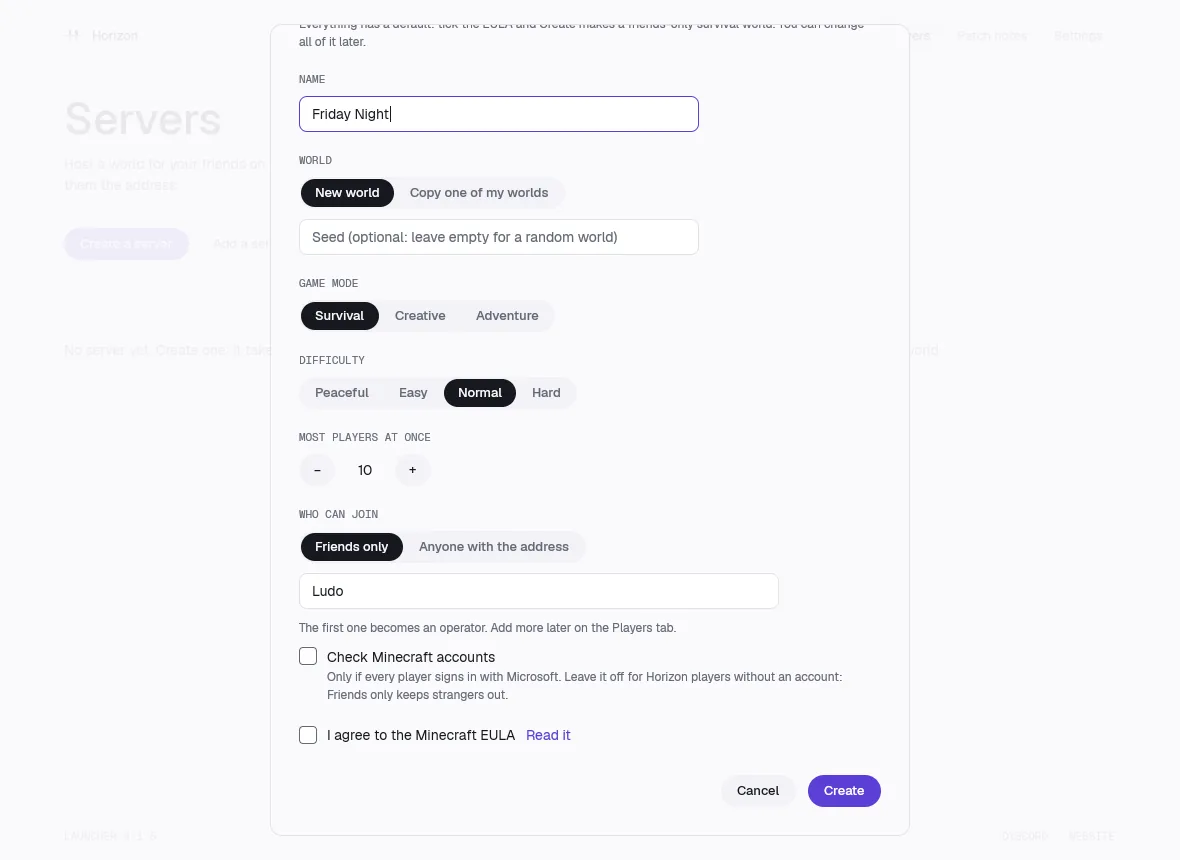
Choose Create a server. To use a server folder you already have, choose Add a server folder… instead. The dialog asks for:
- Name.
- World: New world (with an optional seed) or Copy one of my worlds.
- Game mode: Survival, Creative or Adventure.
- Difficulty: Peaceful, Easy, Normal or Hard.
- Most players at once: use – and +.
- Who can join: Friends only or Anyone with the address. With Friends only, type your friends' names; the first one becomes an operator.
- Check Minecraft accounts, off by default. Leave it off for Horizon players. Turn it on only if every player signs in with Microsoft.
- I agree to the Minecraft EULA, with a Read it link. You must tick it.
Everything has a default, so ticking the EULA and choosing Create makes a friends-only survival world. You can change all of it later.
Start it and watch it
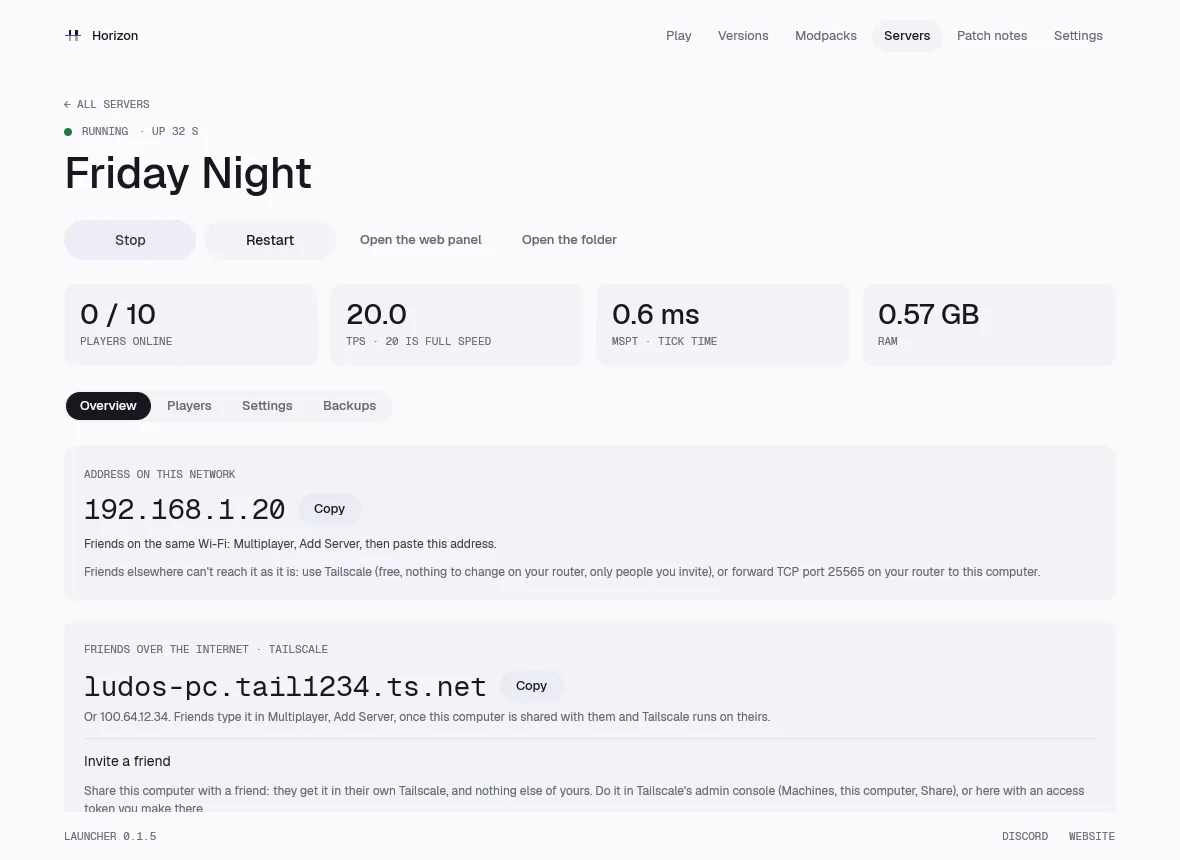
Open the server with Open on its row. At the top, a line says whether it is Stopped, Starting, Running, Restarting, Stopping or Updating, with how long it has been up. Then:
- Start and Stop, and Restart.
- Open the web panel and Open the folder.
- Four tiles: Players online, TPS (20 is full speed), MSPT (how long a tick takes) and RAM.
- Four tabs: Overview, Players, Settings and Backups.
The Overview tab has the server's console, with a command line: type a command and press Enter. If the game crashes, the launcher restarts it by itself and says so ("The game crashed N times and was restarted by itself").
Let your friends join
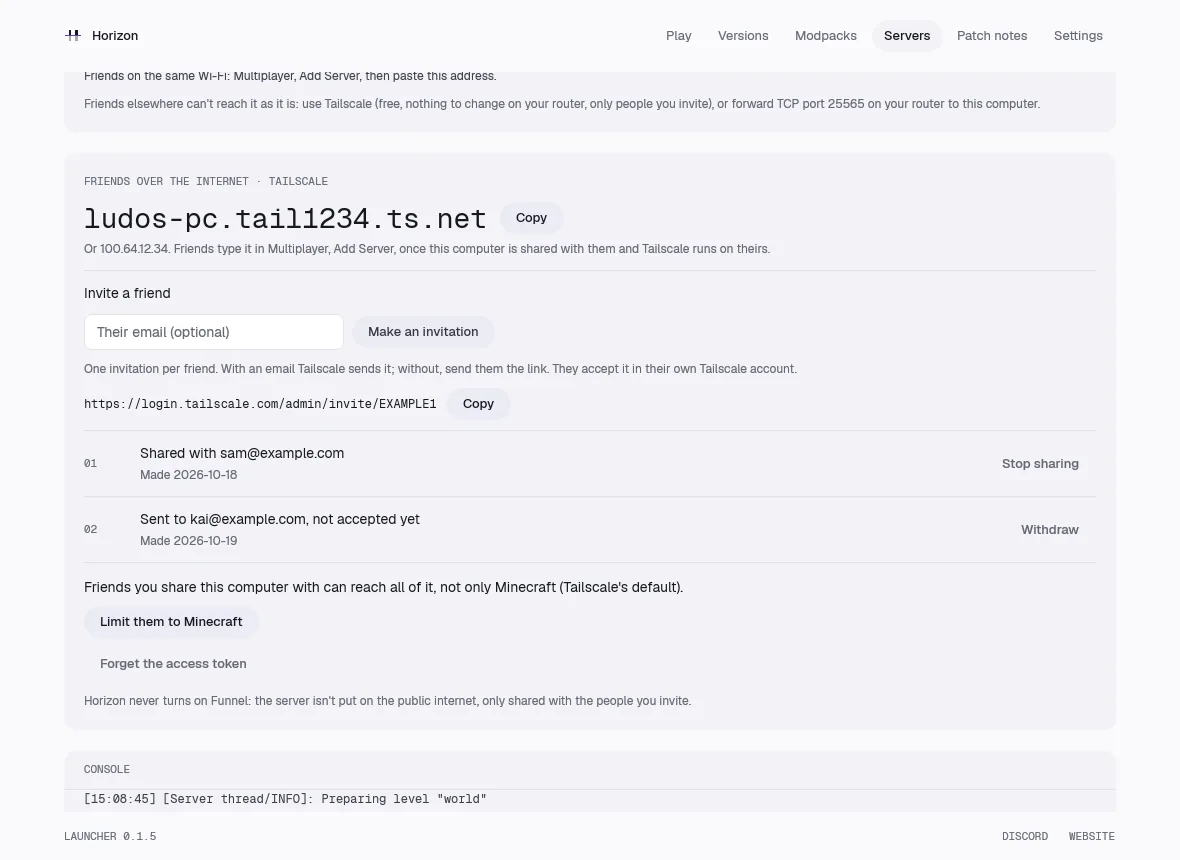
The Overview tab shows Address on this network with a Copy button. Friends on the same Wi-Fi choose Multiplayer, Add server and paste it.
For friends elsewhere, the page offers Friends over the internet through Tailscale, which is free, needs nothing changed on your router and reaches only the people you invite. Depending on what it finds, it shows:
- Install Tailscale if it is not installed, Open Tailscale if it is not running, or Sign in to Tailscale if you are signed out. Each has Check again.
- Once it runs, the server's Tailscale name with Copy. Friends type it in Multiplayer, once they have accepted your invitation.
- Invite a friend: open Tailscale's admin console, or Use an access token… so the launcher can make the invitation itself. Type their email (optional), choose Make an invitation and send them the link. The list shows Withdraw for an invitation not accepted yet and Stop sharing for one that was.
- Limit them to Minecraft changes your Tailscale access controls so invited friends reach the server and nothing else on your computer. Remove the limit undoes it.
Horizon never turns on Tailscale Funnel: the server is not put on the public internet. The other way is to forward TCP port 25565 on your router to the computer.
Players
The Players tab lists who is Online now, with Make operator (or Remove operator), Kick and Ban. Under Who may join, the Friends only switch turns the whitelist on. Type a player's name and choose Let in to add them.
Settings
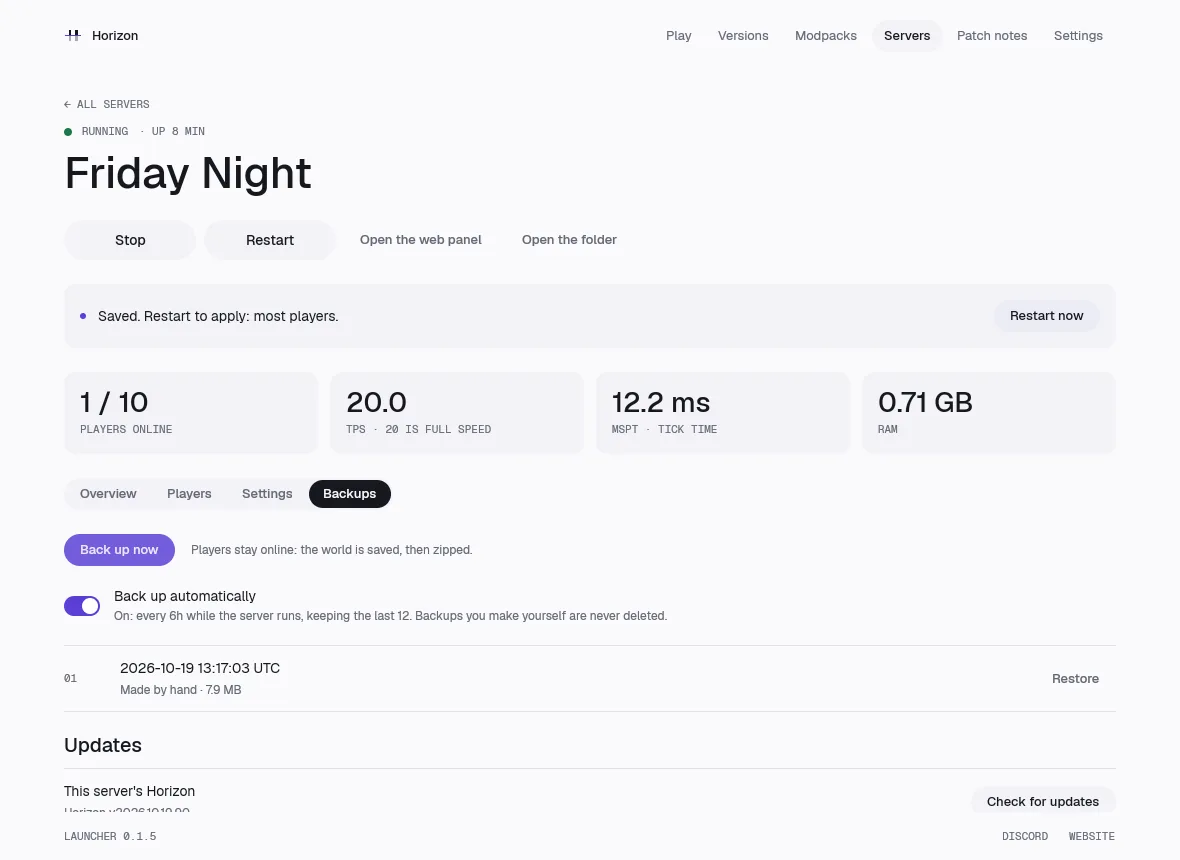
The Settings tab has the message in the server list, game mode, difficulty, PvP, most players at once, view distance, simulation distance, port, Check Minecraft accounts and Run in the background and at login. Each says whether it applies at once or after a restart, and the page then offers Restart now. A value the server would refuse shows in red under its field.
When something is wrong the launcher says so in plain words. If it can fix it, there is a button: Use port 25566 when the port is busy, Prepare the game files when they are missing.
Backups and updates
The Backups tab has Back up now, and Back up automatically (every 6 hours, keeping the last 12; backups you make by hand are never deleted). Restore next to a backup asks you to confirm with Replace the world, and keeps the world it replaces.
Under This server's Horizon, Check for updates and Update now move the server to the newest release. The world is backed up first, and the server goes back to the old release by itself if the new one does not start.
From the command line
This works today, on a VPS or any computer. Everything below is the same program the launcher runs.
1. Install
On Linux (x86-64) and macOS (Apple Silicon):
curl -fsSL https://raw.githubusercontent.com/ludovic111/horizon/main/packaging/server/install.sh | shOn Windows (x64), in PowerShell:
irm https://raw.githubusercontent.com/ludovic111/horizon/main/packaging/server/install.ps1 | iexThe script downloads the latest release from GitHub, checks it against the SHA-256 GitHub publishes, and never asks for sudo or administrator rights. It puts horizon-server and horizon-prepare in ~/.local/bin (on Windows, in your PATH). Other systems, such as Linux on ARM, build from source.
2. Prepare the game files
You need Minecraft 26.3 played once, Java 25 (a JDK) and the 26.3 server.jar, which is the downloads.server.url in your launcher's versions/26.3/26.3.json. Then:
horizon-prepare --prepare --server-jar /path/to/server.jarOn a machine with no Minecraft, prepare on your own computer (with the launcher or horizon-prepare) and copy the prepared 26.3 folder to the server, into ~/.local/share/horizon/game-files/horizon-client/26.3.
3. First run
mkdir my-server && cd my-server
horizon-server init
horizon-server start
horizon-server status
init asks whether you accept the Minecraft EULA, the world's name and seed, the port, whether to use a whitelist and who to add, and whether to make the first player an operator. It writes server.toml. Every question has a flag, so it also runs from a script.
Players join at your computer's address and the port, 25565 by default. horizon-server run runs in the foreground with the console on your terminal instead.
4. The everyday commands
horizon-server run                       in the foreground, with the console
horizon-server start | stop | restart    in the background
horizon-server status                    up or not, TPS, MSPT, players, RAM
horizon-server cmd COMMAND...            one console command, and its answer
horizon-server logs [-f] [-n N]          the log; -f follows it
horizon-server op NAME | deop NAME
horizon-server whitelist add|remove NAME
horizon-server backup | backups | restore BACKUP
horizon-server panel                     a one-time login link for the web panel
horizon-server service install           start it with the computer
horizon-server update [--check]          install the newest release and restart on it
horizon-server rollback                  back to the release before
Settings are in server.toml: the message of the day, port, most players, online mode, whitelist, view distance, game mode, difficulty, backups and the panel. Changes apply at the next restart. A vanilla server folder works as it is: run horizon-server init in it, and the world, ops.json and the whitelist keep vanilla's names and formats.
The server restarts the game by itself if it crashes. Updates never happen on their own: it tells you a new release is out, and horizon-server update backs up the world, switches, and goes back by itself if the new game does not start.
The web panel
horizon-server panel prints a login link that works once, for ten minutes. The panel shows live TPS, MSPT, RAM and CPU for the last ten minutes, the players (with a kick button), the console, the backups, and Restart and Stop. It listens on this computer only. To reach it from elsewhere, put your Tailscale address in [panel] bind, or forward the port over SSH. Never put it on the open internet.
What does not work yet
- Horizon players cannot join a server that checks accounts (see above).
- No Docker image is published. You can build one from the repository.
- Settings in
server.tomlapply at the next restart, not live. console(attach to a server running in the background) andbanandpardonas their own commands are coming. In the meantime,horizon-server cmd ban NAMEworks.
The full reference, with every option, is docs/hosting.md in the repository, and docs/server.md explains the design.
How fast is it
On the latest bot benchmark, with up to 50 players, Horizon used 3.8 to 4.8 times less memory than vanilla, Paper and Fabric with Lithium, started in about 8 seconds against 15 to 22, and used the least CPU from 10 players up. Its average tick was longer than Paper's at low player counts. See Performance for the numbers and what they mean.
Edit this page on GitHub · Spotted something wrong? Open an issue or ask on Discord.
Not an official Minecraft product. Not approved by or associated with Mojang or Microsoft.